Showing posts with label Subversion. Show all posts

Sunday, 25 November 2012

TortoiseSVN vs TortoiseGit Introduction

This post is a comparison between TortoiseGit and TortoiseSVN. In an earlier post, we have explained what a trunk, branch and tags are, together with other related concepts. An introduction to Git concepts is available here, it is a prerequisite for this post.

Creating/Cloning A Repository

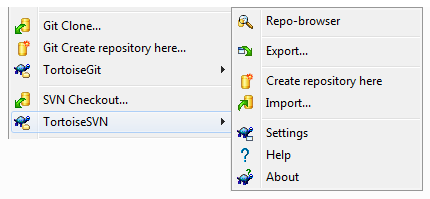
Assuming you have both TortoiseGit and TortoiseSVN installed on your PC, you can create or clone repositories to your local PC directories. Select a directory and right-click it with your mouse:


  • TortoiseGit allows you to clone an existing repository locally, or to create one from scratch.
  • For TortoiseSVN, you need to open the sub-menu to create a local repository.
  • The equivalent of Git cloning is somehow a checkout in SVN.
  • With Git, a working directory is a fully fledged Git repository (related to the original repository if it was cloned). Cloned repositories can be cloned themselves. You can create chains of repositories.
  • When using a SVN checkout, the working directory is not a SVN repository. It is only a local checkout of the corresponding repository content. One cannot perform a checkout on a checkout in SVN.
  • The export function in TortoiseSVN is about obtaining a copy of files in a repository, but without the meta-data required to record changes made to this content. In other word, this will not be a working directory from a SVN perspective. This function is also available in Git once the repository is created or cloned.
  • TortoiseSVN also offers an import function, which is typically used to import the directory structure within the local directory, into the repository. This function is seldom used. People will rather perform a check out, create directories locally, and commit them.
  • At last, TortoiseSVN offers the Repo-Browser functionality which allows one to work on/browse a repository without checking it out. That same functionality is available in TortoiseGit once the repository is created or cloned.

Sync/Update And Commit

If you right-click the Git or SVN working directory, a different set of functionalities are offered:
  • A Git Sync is a Pull and a Push at the same time (we will cover these operations later). In SVN, the corresponding operations would be Update and Commit.
  • A Git Commit registers modifications made to files in the working directory.
  • A SVN Update imports locally all code committed by other developers into the repository since you performed you last check-out or last update. In others words, it makes your local directory in sync with the repository. This method is also available in Git as Update To Revision once the repository is created or cloned.
  • A SVN Commit is the operation pushing your local directory modifications back to the repository.

Additional Commands

About commands in common:
  • Show Log - Displays the list of commits performed on the directory. 
  • Check For Modifications - Shows the list of file modifications together with files which have not been added for versioning/revision in the repository.
  • Resolve(d) - Sometimes, code conflicts between (remote) repository or branches and the local (working) directory need to be decided and resolved. It can be a matter of giving preference to the local or remote code. This functionality helps resolve this.
  • Revert - If you don't like the uncommitted modifications you have made so far to your files, you can retrieve the original version in the repository. Think at this functionality as a rubber.
  • Clean Up - If something happened while a command was performed, the system may be left in an unstable or unclean status. This command help clearing the mess.
  • Rename - Helps renaming a file or folder in the local directory. One should not use the typical windows explorer rename function, because Git and SVN would not be notified and it would be impossible for them to maintain continuity between files.
  • Delete - Removes a files or a directory in the local directory. Just like for renaming, one
    should not use the typical windows explorer delete function, because Git and SVN would not be notified and it would be impossible for them to maintain continuity.
  • Switch - Assuming you are working on trunk (SVN) or master (Git), or a branch, this method helps you shift between these back and forth, rather than checking them out in another local directory.
  • Merge -  This allows one to merge the modifications made in a branch back to trunk/master (or any other source branch it was created from).
  • Create Branch/Tag - Simply allows the creation of branches and tags.
  • Settings - Enables configuration of TortoiseGit and TortoiseSVN.
  • Add - Tells Git and SVN to take files into consideration for the next commit. In Git, this is called staging.
  • Create Patch (Serial) - This method is about creating patch from modifications made in the local directory.
  • Apply Patch (Serial) - This functionality is about applying patches to the  local directory.
  • Help - Provides documentation about TortoiseGit and TortoiseSVN.
  • About - Provides information about TortoiseGit and TortoiseSVN.
About TortoiseSVN specific commands:
  • Revision Graph - Displays a graph of branches and tags in the repository.
  • Get/Release Lock - Allows one to lock some files in the repository, to make sure no other engineer modifies them while one is working on it locally.
  • Relocate - If the repository has changed of location, this functionality has local checkout point to that new location.
About TortoiseGit specific commands:
  • Fetch - This functionality retrieves modifications from a remote source back to the local repository, but does not merge them.
  • Pull - This is a fetch with merging.
  • Push - This function pushes current modification to a remote repository.
  • Diff (With Previous Version) - Displays staged differences made in the working directory.
  • Rebase - A complex function allowing to move modifications made to a branch back to master (or any other branches), without keeping a continuity trace in the logs.
  • Stash Save - Saves current work made in the local directory without committing it into the repository.
  • Bisect Start - Helps finding a revision that caused an issue and move the HEAD pointer accordingly if necessary.
  • Submodule Add - Adds another Git project/repository in this repository, while keeping commits separated.

Saturday, 3 November 2012

Explain Trunk, Branch, Tag And Related Concepts

Trunk, Branch and Tag concepts are relevant to revision control (or version control) systems. These systems are typically implemented as repositories containing electronic documents, and changes to these documents. Each set of changes to the documents is marked with a revision (or version) number. These numbers identify each set of modifications uniquely.

Reminder

A version control system, like Subversion, works with a central repository. Users can check out its content (i.e., the documents) to their local PC. They can perform modifications to these documents locally. Then, users can commit their changes back to the repository.

If there is a conflict between modifications made to documents by different users committing simultaneously, Subversion will ask each user to resolve the conflicts locally first, before accepting their modifications back to the repository. This ensures a continuity between each revisions (i.e., set of modifications) made to the content of the repository.

What is this good for? If the repository is used to store software development code files, each developer can check-out these files locally, and after making modifications, they can make sure these compile properly before committing their modification back to the repository. This guarantees that each revision compiles properly and that code does not contain any incoherence.

In other words, this enables the implementation of Continuous Integration of software engineers' work in the same code base.

Trunk, Branches & Tags

Sometimes, software development requires working on large pieces of code. This can be experimental code too. Multiple software developers may be involved. These modifications are so large that one may want to have a temporary copy of the repository content to work on, without modifying the original content. This is issue is addressed with trunk and branches.

When using Subversion, the typical directory structure within the repository is made of three directories: trunk, branches and tags. The trunk contains the main line of development. To solve the issue raised above, a branch can be created. This branch is a copy of the main line of development (trunk) at a given revision number.

Software developers can check the branch out, like they would with trunk content. They can perform modifications locally and commit content back to the branch. The trunk content will not be modified. Multiple software developers can work on this branch, like they would on trunk.

Once all modifications are made to the branch (or experimental code is approved), these modifications can be merged back to trunk. Just like with a simple check-out, if there is any incoherence, Subversion will request software developers to solve them at the branch level, before accepting to merge back the branch into trunk.

Once the branch is merged, it can also be closed. No more modification on it is accepted. Multiple branches can be created simultaneously from trunk. Branches can also be abandoned and deleted. Modifications are not merged back to trunk.

When the software development team has finished working on a project, and every modifications have been committed or merged back to trunk, one may want to release a copy (or snapshot) of the code from trunk. This is called a tag. The code is copied in a directory within the tag directory. Usually, the version of the release is used as the directory name (for example 1.0.0).

Contrary to branches, tags are not meant to receive further modifications. Further modifications should be performed only on trunk and branches. If a released tag need modifications, a branch from the tag (not the trunk) should be created (for example, with name 1.0.x). Later, an extra tag from that tag branch can be created with a minor release version (for example 1.0.1).

Why work like this? Imagine a software application is released and put on production (version 1.0.0). The team carries on working on version 2.0.0 from trunk (or a branch from trunk). This makes sense regarding the continuity of the code line. Later, one finds a bug on version 1.0.0. A code correction is required. It cannot be performed on trunk since it already contains 2.0.0 code. Tag 1.0.0 must be used. Hence, the need to create a branch from tag 1.0.0.

But what about the code correction created for the 1.0.0 bug? Shouldn't it be included in version 2.0.0? Yes, it should, but since branch 1.0.x cannot be merged back to trunk (it comes from tag 1.0.0), another solution is required. Typically, one will create a patch containing the code correction from branch 1.0.x, and apply it locally from a check out of trunk. Then, this code correction can be committed back to trunk and it will be part of version 2.0.0.

Branches created from tag releases have a life of their own. They are called maintenance branches and remain alive as long released versions are maintained. Contrary to trunk branches, they are never merged back with their original tag. You could consider them like little trunks for tag releases.